Saturday, October 20, 2012

Interactive Whiteboard Use


          The SMART Board is a form of technology that I was not exposed to until after high school. A few of my college classrooms had SMART boards but it was rare that the professors would use this tool to its full potential, so it always just seemed like a hightech whiteboard to me. Once I started graduate school at Teachers College I had more opportunities to become familiar with the SMART board and see what this form of technology is truly capable of. 
           
         Our last class was extremely useful because I have never been trained on how to use a SMART board, and most of the teachers I have worked with only utilized the basic components. Thus, I was completely unaware that this instructional tool had so many amazing features. This brings up an important concern that I know has been discussed with the other forms of technology we have been exploring; what is the point of investing so much money into educational technology if teachers are not effectively incorporating it into the classroom? If technology, such as the SMART board, has so many great learning tools and features, teachers should be familiar with them and know how to use them effectively and appropriately to promote learning whenever possible. However, I know that if I were currently a teacher, I would be just as guilty as those teachers that I just mentioned. I would be using it for its basic components and would probably have to spend a lot of time practicing and playing around with the SMART notebook before I became comfortable using it everyday. With that said, there were many points during class last week in which I felt excited about learning how to use it, but there were also many points where I felt overwhelmed. Since there is so much to learn about the SMART board I feel like it would be useful to take a training course or perhaps a webinar on how to get started. 
           I believe the SMART board is mainly a form of instructional technology but that it could be used as a form of adaptive technology as well. Teaching lessons on the SMART board takes learning to a whole new level, allowing the students to interact with the materials and view it from many different angles (this is of course if it is being utilized correctly and to its full potential). However, it could also be a form of adaptive technology due to its ability to manipulate the way in which information is presented. Additionally, it was mentioned in class that the writing tools could be modified, whole hands or fists can be used to select an option rather than a finger, and the screen can be lowered depending on the children’s’ height. These are just a few example of how the SMART board can be used as an adaptive technology, but overall I would classify it as instructional technology since the main purpose seems to be to make learning interactive for all students. Furthermore, when using the SMART board I believe the teacher must accurately gauge what her students are capable of, and what features may act as more of a distraction rather than a learning experience. This may change from child to child and also from class to class.
        While researching the SMART board and trying to find ways to incorporate this technology into my classroom, I came across the website listed below. It is called SMART Exchange and you can use it to find lesson plans that can be used on a SMART board as well as connect and communicate with other teachers. What I particularly liked about this website is that you can search for lessons that are correlated with specific standards, grade levels, and subjects. Then when you find a lesson you are interested in using you can download it right to your SMART Notebook. This website also has a training section in which you can access free resources and webinars specific to your needs, whether it be early education, English language acquisition, curriculum content, etc.


Friday, October 12, 2012

Web 2.0 Tools

The classroom I am currently student teaching in does not take advantage of incorporating multiple forms of technology in the classroom. Most of the technology we utilize includes, the SmartBoard, a document camera and computers or iPads for browsing the web or using basic tools such as Microsoft Word. Reviewing the web 2.0 videos and learning about all of these different applications that I was completely unaware of made me want to learn more so that I could take advantage of such tools, either at my current placement or when I have a classroom of my own.

Diigo
     As I learned, Diigo is very similar to tools like kurzweil and bookshare, but is unique in that it can be used for ANY webpage. Similar to those tools, diigo allows you to post comments, make sticky notes, and highlight text. I think it is great that when using this tool, all changes are saved in "my library," and can be accessed from anywhere at anytime. Additionally, the library ensures that changes made in this interactive tool won't disappear if you logout and then revisit the page. I think this is great for school schedules since subjects are usually restricted to one period per day. I also liked how the application is very secure and organized, allowing teachers to create different groups for different classes or as a way to differentiate material and assignments for specific students within the class.

Little Bird Tales 
    Little Bird Tales is a digital story telling app that can be used to create online books with artwork, photographs and voice. When I first saw this application I immediately thought it would be great for children in the lower elementary grades. I could see my fourth graders being enthused about it at first but then slowly loosing excitement with the tool. With that said, I do think this could be a great tool to use for read alouds or a way to document and display the students' work. I think that since this tool seems very clear and effortless, it could be utilized for a fun and interactive homework assignment that will then be played for the next day for the class.

Popplet 

    I have never heard of popplet before completing this assignment, but I have heard of similar tools. Popplet is a concept mapping tool that looks like a graphic organizer. I liked how you could share it with others and that it could be edited in real time. I do think this tool would be a great place to have students post their thoughts and ideas about certain topics. Since popplet seems relatively easy to manage, I think it would be especially beneficial for brainstorming activities or group projects. However, with this application I worry that my students that it would benefit most are also the students that would be most distracted by it and may start to use it for non-educational purposes.

Prezi 
   When choosing what tools I would like to incorporate in my classroom, prezi was probably my least favorite. Prezi reminded me of a more complex version of Powerpoint that would take a while to learn how to use effectively and become comfortable with its options. The feature I liked the most was the ability to use freestyle options for adding text and images. It seems as though there is no restriction as to how you can incorporate text and images in this tool for presentation purposes. Despite that, this tool did not seem like something I would want to use in the classroom. This may be because I immediately labeled it as being too complicated but I also believe that the intentions of this tool were not created for an elementary student. It reminded me of something that would be used in a business like atmosphere to streamline presentations while giving it a creative edge. I do see this being a beneficial tool for high school students or college students, but I do not believe it would be as beneficial in my fourth grade classroom. 
 
Titan Pad
    Since I am a huge fan of Google Docs I immediately loved learning about Titan Pad. Titan Pad seems like a great tool for collaboration and is very easy to use. While using Titan Pad you can see the evolution of the document and can work in real time with your group or others that you have shared the document with. I loved that there are colors to differentiate users. When I noticed this I immediately thought of how my students are current editing and revising their narrative writing pieces by using colored pencils to indicate changes that must be made before publishing. Rather than bringing home their writing notebooks I thought this would be a great tool for the students to use before publishing their stories. The teachers or parents could also have access to these documents and would be able to make necessary revisions. The color discrimination between users would show who changed what and the the history option would allow users to see when these changes were made. The only negative thing I could say about Titan Pad is that a person can delete another group members comments. Otherwise, I think Titan Pad could be used as an awesome collaborative and educational tool.

Voicethread 

     I had never heard of Voicethread or anything like it before, but it looks like a great interactive webinar tool. My initial reaction was that this tool would be a great resource for online classes. Voicethread is a cloud based application, like many other application that are coming out these days, and works like a slideshow. It is accessible in a multi-modal format and allows users to make comments through the microphone, webcam, text, phone, or by uploading audio files. Thus, this tool would be useful for a range of different learners. 


Stixy 

   Stixy definitely seems like a fun interactive tool. It reminded me of a combination of Popplet and the dashboard of a mac computer with widgits and sticky notes. Although there are some great features of Stixy, such as the ability to share with others and upload documents, photos, and pdfs, there also seemed to be many negative aspects. The layout of this application would probably be overwhelming  especially for students that may already struggle with organization. Also, it does not seems to be easily condensed or transferrable into another format such as, microsoft word.

Sunday, October 7, 2012

Kurzweil and Bookshare


Bookshare
            The Bookshare webinar presented by Cherie Miller was extremely informative and easy to follow. Before this webinar I was completely unaware that Bookshare even existed and I am now very excited to add this accessible form technology to my list of classroom resources. A few of the features that I loved about Bookshare are that free memberships are offered through OSEP awards, its library is constantly being updated with over 2,000 new books added every month, and there is a library specifically for post-secondary content. Additionally, Cherie stated that if a student wants a book that is not on Bookshare, they should contact the company and they will add that book to their library. Even though this may take up to 14 weeks it gives teachers and students the opportunity to plan in advance and does not restrict any student from reading any book he or she may desire.
            What struck me by surprise is that there are strict eligibility criteria to access Bookshare. As stated in the eligibility qualifications, students with autism, emotional disorders, ADHD, ESL and ELL’s are not qualified unless they have an accompanying disability that affects their ability to read standard print. I was also curious if schools or teachers that had access to this software were restricted to only provide it do the student in the class with the eligible disability, or if it was accessible to the class as a whole. 
          
Kurzweil
         Kurzweil is another program that I did not know existed before taking this class. After watching the videos and reading about the main features of Kurzweil I was immediately drawn to the fact that it supports reading, writing, and study skills that incorporate the core principles of universal design for learning. I also liked the emphasis on promoting instructional differentiation without curriculum differentiation. I think it is extremely important to ensure that our struggling learners are not falling behind with the necessary skills and knowledge they need to progress through their educational careers. 

Student Learning Profiles
            Kurzweil would be a great educational tool for a student like Michael who has difficulty completing assignment with multiple steps and who needs support for abstract concepts, directions, and any use of figurative language.  I believe the multi-sensory approach would be extremely beneficial for students like Michael and would address many of his unique needs.  Some of the features of Kurzweil 3000 that would be helpful for Michael are the ability to slow down and speed up when necessary, have segments read aloud, and the use of the American heritage dictionary for immediate definitions.
            Another student that would benefit from the use of Kurzweil and Bookshare is Rebecca. Rebecca has a hearing impairment as well as a language based learning disability that has negatively affected her background knowledge of certain topics. She also struggles with the structure of language, which is why Kurzweil and Bookshare would be great educational tools for Rebecca. Bookshare allows for 4 different ways to read, including, multi-modal, large font, auditory, and Braille. Students like Rebecca would most likely benefit from the multi-modal reading format or the auditory option. This tool combined with Kurweil’s options of an immediate dictionary and word prediction would help with Rebecca’s receptive and expressive language issues as well.


Sunday, September 30, 2012

Personal Learning Devices


            To begin, I really enjoyed that we took the time in class last week to learn about the iPad and discuss accessibility issues in a hands on manner. I especially liked that almost everything we were able to do on the iPad to make it more accessible, was also an option on the iPhone. Although I do not own an iPad, I have contemplated purchasing one for quite some time. I think that one of the factors holding me back from making this investment is that I am worried I will not use the device to its full potential and then it will just become another expensive object I drag around. I hope that the focus on the iPad in this class as an educational tool and form of adaptive technology will show me all of the features it has to offer, both as a teacher and as a student. This will hopefully result in the push I need to make the plunge and finally invest in this device!

Is it a form of instructional technology, adaptive technology, or both?
            I strongly believe that the iPad is a form of instructional technology as well as a form of adaptive technology. My last student teaching placement was at a charter school for children with autism and I was able to observe the device being used constantly throughout the day for both instructional and adaptive purposes. For example, many of the teachers, including myself, would incorporate the iPad into daily lessons or programs that were run with the children. One of the students was learning how to skip count, so we would start the lesson by watching a skip counting video on YouTube, (which she absolutely loved), and would proceed by playing an interactive skip counting game, both done on the iPad. Since the student struggled with fine motor skills, using the iPad to click on the numbers acted as a form of adaptive technology and allowed the lesson to proceed in a more timely fashion.
            Since each classroom was provided with 2-3 iPads, a few computers and laptops, the teachers were constantly able to take advantage of using these technological devices, especially since there were only about 3-8 students in each classroom. This also allowed time for the teachers to keep the iPads up to date with the newest applications for the student's needs, as well as for the use of classroom management tools.  The general accessibility options on the iPad also came in handy at this school. For instance, the teachers were able to disable the deletion of any applications, as we had learned in class, and restrict access to any inappropriate websites.

What did you think? What were potential accessibility issues? How would you change it? 
           In my opinion I think the use of the iPad in any educational setting is a great thing. I think it can be agreed upon that this device can be used for a multitude of possibilities, whether it be as an instructional tool, adaptive tool, a reinforcer, or so much more. Issues only arise when this technology is not being used properly or not to its full extent. If school districts are investing so much money on these devices then I believe it is the responsibility of the teachers to learn how to use the devices and incorporate them into the curriculum in a way that would best suite their students’ needs.
            As for accessibility issues, something that stood out to me in class was how the iPad had to be reset each time certain features were used, such as the AssistiveTouch or zoom features. I can see this as being a huge inconvenience for teachers and families when they are trying to work with their children. This also brings up the issue about what we do as teachers when a student is unable to bring home a device that they have become dependent upon at school for communication purposes, academic purposes, etc. Shouldn't the adaptive technology devices they use in school be allowed to go home with them, especially if it helps them communicate with their families? And then even if the technological device goes home with the student, what happens when the family is unfamiliar with it and is unable to work it? These are all issues we have to face when working in an educational environment, especially with students who have special needs. 
            As a whole there is nothing I would really want to change about the iPad. But, I do think the people using such technological devices should be provided with the knowledge on how to use them effectively. I also think it would be beneficial if such training were provided to the families that have children who are using such devices at home. Whether it is provided in professional development meetings, parent teacher conferences, or from colleague to colleague, training is a necessity! 

Sunday, September 23, 2012

Reflection on Universal Design for Learning


I have always felt that Universal Design for Learning should be implemented in all classrooms, however, I had the misconception that it would be most beneficial for students with disabilities. After completing the readings this week I am more aware of how helpful this form of teaching is for all students, including the typical learner. I particularly enjoyed how the UDL module was created in a UDL friendly format, making it interactive and easy to understand. I immediately saved the UDL Guidelines - Educator Checklist after viewing it, and plan to print out a copy for my cooperating teachers. The check list does a great job of summarizing the key points of UDL and is an excellent way to ensure that these points are being addressed in our lessons. As teachers, I believe we always have the best intentions in mind, but sometimes we may inadvertently teach in a way that we are used to, when in fact, our typical teaching style may only be beneficial to a few types of learners. Times have clearly changed since I was in elementary school, so when I plan lessons I find myself teaching in a format that I remember being taught in when I was a student. Using the principles of UDL will prevent myself and others from falling into this pattern and will promote the use of assistive technology in the classroom. 
Lastly, I thought the "Take Aways" of the module were crucial points that stuck with me. The first was that a lesson does not need to address each UDL bullet on the checklist as long as several guidelines under each principle are met. This format of teaching lessons will support many more students compared to the traditional lessons and materials that many of us are used to (such as lectures and textbooks). The second point was that applying the UDL principles to lessons while they are being created will allow more students to benefit right from the start and will prevent the need of refining and modifying lessons for specific learners. Overall it is clear that UDL is a proactive way to ensure that all students are provided with a quality education that will result in deeper understanding. 


Relating UDL lesson to sample learning profiles:
Michael is a student that I believe could truly benefit from Universal Designs for Learning being implemented in his classroom. He likes exploring his own interests but has difficulty when asked to learn about other topics, execute a new skill, or complete a task that involves multiple steps. To account for this, Michael’s teacher should make sure to customize the display of information during lessons to keep him, along with his classmates, engaged and interested in the topic at hand. To do this the teacher will have to learn more about his/her students to find out what their interests and hobbies are, so that lessons can be centered around such topics when applicable. To specifically address Michael’s issue of learning about new topics, the teacher could present new information in ways that Michael is already fond of and comfortable with, such as in visual representations.  In terms of completing a task with multiple steps, instruction should be scaffolded and broken down into smaller steps to prevent Michael from being overwhelmed. He could also be taught how to set goals for himself by being provided with a checklist of what must be accomplished or completed for each lesson. If the checklist is completed during the designated amount of time, Michael should be praised (depending on age a token economy system can also be used). In order to address Michael’s inappropriate questions or comments, along with his inability to understand abstract concepts, the teacher could try implementing a peer tutor or buddy system. This would prevent Michael from distracting the class or being called out on by classmates multiple times throughout the day. 

Another student that would benefit from the use of Universal Design for Learning is Luke. Although Luke has dyslexia and difficulty with executive functioning, he demonstrates strengths in the use of technology. Therefore, if lessons incorporate interactive technology, (as seen in Module 3 with the videos on the concept of how light effects the eye), I think Luke would be more engaged in the class lessons. Since Luke also struggles with directions, he should be provided with explicit directions in both visual and audible formats. Visual aids and reminders may also be useful to help Luke remember to complete his class work and homework. Additionally, since Luke has trouble asking for help and getting involved in class discussions he should be paired with a classmate when appropriate. 

This cartoon reminded me of the introduction in the "Future in the Margins" article.  As stated by Rose and Meyer,  "These new technologies will not make less work for teachers, but they will transform the work making it more nutritious, more differentiated, more engaging, and more democratized." 

Universal Design Challenge: Phase 2


After photographing my kitchen and thinking about how inaccessible it can be at times, I started to wonder how this space can be modified into a more universally designed area. I did some research and found a few items that would help alleviate the problems in this kitchen, including, the high cabinets, unusable storage space, and limited space to maneuver objects around. Here are some of the ideas I found: 
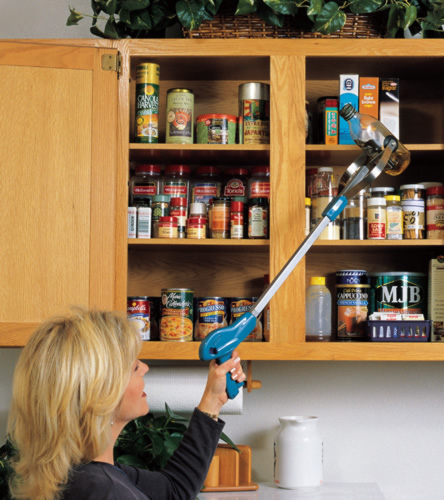
Extended Arm Grabber 

Although the extended arm grabber is relatively inexpensive, compact, and easy to use, I thought it might still be difficult to reach the high spaces for those in wheelchairs. The extended arm grabber also does not work well for objects that are not circular in shape and could result in dropping certain objects, especially things that are heavy. Lastly, this would simply be a modification tool for some, rather than a way to make the kitchen more universally designed.


Step Stool with Handrail

The step stool with the handrail also seemed like a great modification at first. However, as I mentioned in phase 1 of the universal design challenge, step stools are hard to maneuver in my kitchen due to the lack of space. A step stool would also not provide accessibility to those who use wheelchairs. Therefore, the step stool modification would be insufficient in addressing many of the universal design principles, especially lacking simplicity in use, low physical effort, and the size and space for approach and use. 


Low to the Ground Cabinets/Floor Cabinets 
The third modification I thought of was creating low-to-the-ground cabinets. This would be accessible to all and would meet the 7 principle guidelines of universal design. The only issue with the sole use of this modification is that overhead storage would be completely unused and unaccounted for, thus the kitchen would be crowded with items in the floor cabinets.

Accessible Shelving / Adjustable Height Cabinets 
The last modification I came across was adjustable height cabinets, also known as accessible shelving, which I believe is the best idea to make my kitchen, or any kitchen for that matter, more universally designed. This alteration would allow for overhead storage use and would be accessible to people of all heights, or those in wheelchairs. The adjustable height cabinets would also be equitable in use, flexible in use, simplistic, provide perceptible information, require low physical effort, and provide the appropriate size and space for approach; meeting ALL of the principles of universal design. 


Below is a video of the Kitchen Cabinet Lift System, which is a little more complex than the accessible shelving/adjustable height cabinets discussed above, but still seems like a great way to promote universally designed spaces! The company responsible for creating these cabinets is Freedom Lift Systems. 


Before:                                                                      After: 

Sunday, September 16, 2012

Reflection on Universal Design

          After leaving class last week with the concept of universal design fresh in my mind, I found myself taking a closer look at my immediate surroundings and asking myself “is this accessible to all?” As I’m sure many of my classmates noticed through the Universal Design Challenge, there are a tremendous amount of inaccessible aspects in our immediate environment. From school buildings, to apartment complexes, homes, and public transportation, it seemed easier to spot things that were inaccessible to some people, rather than accessible to all. As stated in the Principles of Universal Design Poster, there are 7 guidelines that must be followed to promote universal design. These principles include, equitable use, flexibility in use, simple and intuitive in use, perceptible information, tolerance for error, low physical effort, and size and space for approach and use. Stated in its simplest form, is seems that the features of universal design can be easily implemented, but unfortunately most people do not think in a universally designed mindset. I believe that if you live your life without facing any of these challenges it may be difficult to put yourself in another person's shoes and understand the potential barriers. Therefore, as soon to be or current teachers, we should be responsible for incorporating the principles of universal design and UDL on a class wide level as well as a school wide level to the best of our abilities. It is also important to educate those around us on how to incorporate universal design into their every day lives and to be mindful of creating an environment accessible to all.
          Universal design was created based on the idea that equality and accessibility are rights that every person is entitled to. With the proper use of universal design, every individual should be able to navigate through their environment without potential barriers or obstacles. Thus, when we bring the ideas of universal design into the classroom, it takes on the form of UDL and it may look different from one student to another.As stated on the CAST website in Chapter 2: What Brain Research Tells Us About Learner Differences, learning is distributed across 3 interconnected networks and learners may differ within and across all 3 brain networks. UDL addresses these differences by providing multiple means of representation, multiple means of expression, and multiple means of engagement.  For a student such as Sarah in the student profile who has ataxic cerebral palsy and uses a wheelchair, her teacher would have to ensure that items needed in class were not placed too high out of her reach. The classroom layout should also be designed in a manner that allows the appropriate size and space for approach and use of a wheelchair. Or for students similar to Rebecca who have hearing impairments, there should be an abundant amount of visual cues incorporated into the classroom as well as opportunities to work one-on-one with a peer or teacher to utilize her lip reading skills. In terms of UDL Sarah should be given the opportunity to answer questions or express understanding in the various forms of communication that she utilizes. Whereas in Rebecca's case, she should be given the opportunity to express understanding through the form of presentations when appropriate since it is a strength of hers. 
           It is important to note that these techniques should not be restricted to students with disabilities and should be used for all learners. As stated on the CAST website, "UDL is not 'just one more thing;' it is an integral component of improving student learning, compatible with other approaches to education reform."