Sunday, November 25, 2012

Overview of Augmentative Alternative Communication (AAC)


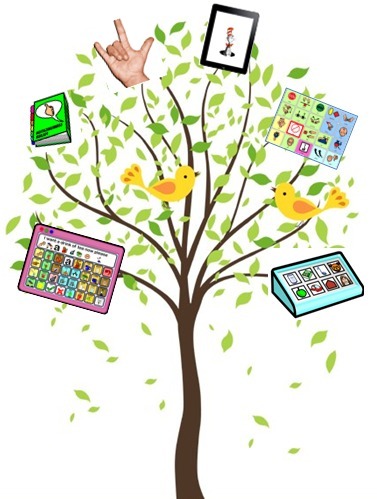
       Augmentative Alternative Communication (AAC) includes all forms of communication, besides oral speech, and is used to express an individual’s thoughts, needs, wants or ideas. There are many different types of AAC, ranging from unaided communication systems, such as gestures, body language, and sign language, to aided communication systems, which require tools such as voice output boards and picture symbols. As we learned in the video overview, there is a spectrum of AAC devices that range from low tech to high tech, which can be utilized depending upon the unique needs of each individual. 

Things to consider: 
1. Who are the members that should be involved in the AAC planning process? 
       If possible, it is important that all team members should be present when determining what AAC device should be used and how it should be implemented in the classroom and/or home environment. These team members should include, the student's parents, speech-language therapist, teacher, teaching assistant, occupational therapist, physical therapist, and anyone else that may be involved in this child's immediate environment. Although this is not always feasible for all team members to be present at every meeting, it is crucial that these professionals and parents maintain constant communication to ensure the device is being used effectively to support the child's needs. As noted in the overview, it is especially important that the teaching assistant be up to date on the usage of the AAC device because they usually spend as much time with the students as the teacher. In addition, the TA is usually with students during periods of the day where there are greater opportunities for socialization, such as lunch and recess. 
2. Where to begin...?
           The first step of incorporating an AAC device into a classroom would be to bring the entire team together to discuss the child's specific needs and decide how the device will be used to address those needs. It is important that each team member is on the same page about how the device will be used, including when and where.  It is also crucial that all members are knowledgeable about using the device themselves and programming the device if necessary. Furthermore, if this device is being introduced to the child for the first time, an appropriate training procedure must be put into place. The environment will also have to be manipulated in order to effectively incorporate this form of AAC into the classroom. This includes identifying and prioritizing the communication activities that occur throughout the school day and depicting the appropriate message sets on any communication boards that are specific for the student. Many communication boards come with a predetermined board, but it then must be customized for each student. 

Reflection:
     The creation of the numerous AAC devices that are now available around the world is truly an amazing thing. AAC gives those with speech/language impairments a voice, and a way to communicate that was not available decades ago. I strongly support the use of such devices in the classroom for any student that can benefit from its use. However, obtaining an AAC device and placing it in a classroom is not where the process ends. Communication is a process, it is something that is ongoing and must be supported with technology as well as techniques that are used in the classroom. For instance, there are many different forms of AAC, as shown on the PRC, Zygo, and Dynavox websites. Not all devices will work for every student, thus a device must be paired with the child based on his or her abilities and disabilities. The student must then be trained on how to use the device as well as the teachers, parents, and any professionals that will be working with the child. As the student grows and progresses, it may necessary to switch to a more complex device such as the large digital boards available through Dynavox. 


Sunday, November 18, 2012

Planning with Technology

     The lecture last week brought up a great point, by now we all have an abundant amount of technological resources, but are we capable of organizing these tools in a way that makes them accessible to utilize in the classroom? Some examples of how we could organize these tools included:
  • Vision for what the tool does 
  • Deciding what the student needs most 
  • Barriers (learning abilities vs. disabilities) 
  • Assistive technology vs. instructional technology 
    • It was noted that if the technology is assistive, a plan must be put into place
  • Entire class usage vs. individual usage  
                           Organizing and Assessing the Tools in Planning
Recognition
Strategic
Affective
The what… (objects)
The how… (action)
The why… (significance)
·       Provide multiple examples
·       Provide flexible models of skilled performance
·       Offer choices of content and tools
·       Highlight critical features
·       Provide opportunities to practice with supports
·       Offer adjustable levels of challenge
·       Provide multiple media formats
·       Provide ongoing, relevant feedback
·       Offer choices of rewards
·       Support background context
·       Offer flexible opportunities for demonstrating skill
·       Offer choices of learning context
·       Examples: kurzweil, smartboard, little bird tales, bookshare, diigo, voice thread, iPad apps, youtube, vimeo, text-to-speech
·       Examples: kurzweil, popplet, prezi, edmodo, stixy, inspiration map/templates, recorded response, digital sound and pictures, self-monitoring tools
·       Examples: edmodo surveys, smartboard, non-linear slides, graphic organizers, live scribe pen, microsoft word, proloque 2go, interactive quizzes

     There are many different ways to organize and assess tools when planning in technology, but this method allows for the teacher to focus on the specific needs of the individual. I liked this format of organizing because it emphasizes that the number one priority is always the student, and the student should be provided with instructional or assistive technology that caters to his or her needs, not the other way around. In addition, I agree with the idea of intentional implementation, which is to include technology in the plan rather than simply making it an add-on. Even though there is the challenge of not always knowing how it will work for a student, it forces the teacher to create a plan for the student(s). Beginning with the student's goal in mind, leading to figuring out how this goal will be accomplished, and eventually ending with a choice of technology, based on the previously created list.
    Another noteworthy topic that was discussed in class was, if a student was constantly provided with choice, will that student always choose the "easier" choice. As a class it was decided that to prevent this issue from occurring, a teacher can present options that promote equal learning opportunities. This issue  made me realize that if a child is constantly choosing the same device, or similar devices, the teacher should take it upon his or herself to find out why the student is avoiding other educational materials. This avoidance may be due to fear of not knowing how to work a tool or how to complete a specific task. 


Friday, November 2, 2012

The Power of Assistive/Adaptive Technology


1. Disabled Bodies, Able Minds: Giving Voice, Movement, and Independence to the Physically Challenged (and Accompanying video: How Assistive Technology Enables Dreams) 

            After reading this article and watching the video on How Assistive Technology Enables Dreams, I have been reminded about the many advantages of such technology, and how alarming it is that many students are deprived from accessing these devices. As discussed in the video, even though there is an abundance of technology available for people with disabilities today, assistive technology is not implemented enough in our schools. The reasons stated were that people are unaware of what is available and that technology is not included in the planning process. In the article we heard the success stories of Susanna and Lukas, and how assistive technology has played such a crucial role in their lives. These stories should encourage educators and parents of students with disabilities to collaborate, and utilize technology whenever appropriate or necessary to prevent potential barriers for their children. As stated by the teacher at the redwood heights elementary school,” introducing children to technology early gets them better prepared and makes it easier down the road so they can spend the later years on
content curriculum."

2. A Personal Perspective on Adaptive Technology

     By: Dr. Richard Keller 
      Dr. Keller had the opportunity to be a student with a disability and a student without a disability, and therefore has seen education in both of those settings. This is a quality that makes his personal perspective on adaptive technology so useful and informative, especially for teachers. Listed below are  a few key points made in this interview by Dr. Keller that really made an impression on me. 

The Medical Model vs. The Disability Rights Movement Paradigm: 

Medical Model
Disability Rights Movement Paradigm
- Causes disadvantages to the individual
- Disability is not a personal attribute
- Reactive approach
- Proactive approach
- Desire to “fix” the person, not the surroundings
- Create things with UD principles in mind

Terminology: Assistive Technology vs. Adaptive Technology: 
“Assistive”
“Adaptive”
- Related to medical model
- Changing the technology, not the person
- Technology will make a person whole or complete
- Location of the disability is not within the person, but somewhere between the interaction of completing a task
- The person with a disability “needs help”
- A tool that works specifically for the person

Using Technology, Negative Aspects vs. Positive Aspects:

Negative
Positive
- Labeled as having a disability
- Feeling of independence and freedom
- Makes the person stand out as being different
- Ability to do what you want when you want
- Psychological/social issues
- Having the ability to do something after losing the power to do so

3. Adapting Classrooms for AT Users: Challenges and Solutions 
            The goal of this video was to prove that making adaptations in the classroom for children with disabilities is not as difficult of a task as it may seem. Listening to the students’ stories about how they were unable to fully participate in their local public schools truly depicts the hardships that these students faced. The presenters discussed the idea of partial participation, and how teachers must take a positive approach and look at what a student can do rather than what he or she cannot do. I believe this video painted an accurate view of how many teachers or school administrators’ focus on students’ disabilities rather than their abilities. I also think the speakers were correct in stating that teachers are more worried about their students’ safety and are lacking the knowledge about assistive technology. The presenters went on to discuss how teachers can give students an active role in the classroom rather than "making them sit on the sidelines." A few examples that stood out to me as making a big difference with minimal effort had to do with promoting class participation and configuring classrooms in a proactive way. The first was an  example of a student that was unable to verbally respond during choral reading class activity, so she had a switch that she could press that spun a fan with streamers. This was extremely simple to create but gave her an active role in the class. The second example was making sure the classroom furniture is positioned for easy access and maneuverability. Small steps can be taken to ensure this accessibility  such as lowering a keyboard, or using blocks to raise a computer monitor. 
    Overall, the takeaway of this video was that teachers and educators must look at accessibility with an open and creative mind. As opposed to being closed minded and preventing their students from engaging in the activities that the rest of their classmates are taking part in. A quote made by Dr. Keller in his interview correlates very well with the overall message of this video, “My greatest hope would be that we can shift the way that people think about disability, the attitudes that non-disabled people still seem to carry around about disability.”


Saturday, October 20, 2012

Interactive Whiteboard Use


          The SMART Board is a form of technology that I was not exposed to until after high school. A few of my college classrooms had SMART boards but it was rare that the professors would use this tool to its full potential, so it always just seemed like a hightech whiteboard to me. Once I started graduate school at Teachers College I had more opportunities to become familiar with the SMART board and see what this form of technology is truly capable of. 
           
         Our last class was extremely useful because I have never been trained on how to use a SMART board, and most of the teachers I have worked with only utilized the basic components. Thus, I was completely unaware that this instructional tool had so many amazing features. This brings up an important concern that I know has been discussed with the other forms of technology we have been exploring; what is the point of investing so much money into educational technology if teachers are not effectively incorporating it into the classroom? If technology, such as the SMART board, has so many great learning tools and features, teachers should be familiar with them and know how to use them effectively and appropriately to promote learning whenever possible. However, I know that if I were currently a teacher, I would be just as guilty as those teachers that I just mentioned. I would be using it for its basic components and would probably have to spend a lot of time practicing and playing around with the SMART notebook before I became comfortable using it everyday. With that said, there were many points during class last week in which I felt excited about learning how to use it, but there were also many points where I felt overwhelmed. Since there is so much to learn about the SMART board I feel like it would be useful to take a training course or perhaps a webinar on how to get started. 
           I believe the SMART board is mainly a form of instructional technology but that it could be used as a form of adaptive technology as well. Teaching lessons on the SMART board takes learning to a whole new level, allowing the students to interact with the materials and view it from many different angles (this is of course if it is being utilized correctly and to its full potential). However, it could also be a form of adaptive technology due to its ability to manipulate the way in which information is presented. Additionally, it was mentioned in class that the writing tools could be modified, whole hands or fists can be used to select an option rather than a finger, and the screen can be lowered depending on the children’s’ height. These are just a few example of how the SMART board can be used as an adaptive technology, but overall I would classify it as instructional technology since the main purpose seems to be to make learning interactive for all students. Furthermore, when using the SMART board I believe the teacher must accurately gauge what her students are capable of, and what features may act as more of a distraction rather than a learning experience. This may change from child to child and also from class to class.
        While researching the SMART board and trying to find ways to incorporate this technology into my classroom, I came across the website listed below. It is called SMART Exchange and you can use it to find lesson plans that can be used on a SMART board as well as connect and communicate with other teachers. What I particularly liked about this website is that you can search for lessons that are correlated with specific standards, grade levels, and subjects. Then when you find a lesson you are interested in using you can download it right to your SMART Notebook. This website also has a training section in which you can access free resources and webinars specific to your needs, whether it be early education, English language acquisition, curriculum content, etc.


Friday, October 12, 2012

Web 2.0 Tools

The classroom I am currently student teaching in does not take advantage of incorporating multiple forms of technology in the classroom. Most of the technology we utilize includes, the SmartBoard, a document camera and computers or iPads for browsing the web or using basic tools such as Microsoft Word. Reviewing the web 2.0 videos and learning about all of these different applications that I was completely unaware of made me want to learn more so that I could take advantage of such tools, either at my current placement or when I have a classroom of my own.

Diigo
     As I learned, Diigo is very similar to tools like kurzweil and bookshare, but is unique in that it can be used for ANY webpage. Similar to those tools, diigo allows you to post comments, make sticky notes, and highlight text. I think it is great that when using this tool, all changes are saved in "my library," and can be accessed from anywhere at anytime. Additionally, the library ensures that changes made in this interactive tool won't disappear if you logout and then revisit the page. I think this is great for school schedules since subjects are usually restricted to one period per day. I also liked how the application is very secure and organized, allowing teachers to create different groups for different classes or as a way to differentiate material and assignments for specific students within the class.

Little Bird Tales 
    Little Bird Tales is a digital story telling app that can be used to create online books with artwork, photographs and voice. When I first saw this application I immediately thought it would be great for children in the lower elementary grades. I could see my fourth graders being enthused about it at first but then slowly loosing excitement with the tool. With that said, I do think this could be a great tool to use for read alouds or a way to document and display the students' work. I think that since this tool seems very clear and effortless, it could be utilized for a fun and interactive homework assignment that will then be played for the next day for the class.

Popplet 

    I have never heard of popplet before completing this assignment, but I have heard of similar tools. Popplet is a concept mapping tool that looks like a graphic organizer. I liked how you could share it with others and that it could be edited in real time. I do think this tool would be a great place to have students post their thoughts and ideas about certain topics. Since popplet seems relatively easy to manage, I think it would be especially beneficial for brainstorming activities or group projects. However, with this application I worry that my students that it would benefit most are also the students that would be most distracted by it and may start to use it for non-educational purposes.

Prezi 
   When choosing what tools I would like to incorporate in my classroom, prezi was probably my least favorite. Prezi reminded me of a more complex version of Powerpoint that would take a while to learn how to use effectively and become comfortable with its options. The feature I liked the most was the ability to use freestyle options for adding text and images. It seems as though there is no restriction as to how you can incorporate text and images in this tool for presentation purposes. Despite that, this tool did not seem like something I would want to use in the classroom. This may be because I immediately labeled it as being too complicated but I also believe that the intentions of this tool were not created for an elementary student. It reminded me of something that would be used in a business like atmosphere to streamline presentations while giving it a creative edge. I do see this being a beneficial tool for high school students or college students, but I do not believe it would be as beneficial in my fourth grade classroom. 
 
Titan Pad
    Since I am a huge fan of Google Docs I immediately loved learning about Titan Pad. Titan Pad seems like a great tool for collaboration and is very easy to use. While using Titan Pad you can see the evolution of the document and can work in real time with your group or others that you have shared the document with. I loved that there are colors to differentiate users. When I noticed this I immediately thought of how my students are current editing and revising their narrative writing pieces by using colored pencils to indicate changes that must be made before publishing. Rather than bringing home their writing notebooks I thought this would be a great tool for the students to use before publishing their stories. The teachers or parents could also have access to these documents and would be able to make necessary revisions. The color discrimination between users would show who changed what and the the history option would allow users to see when these changes were made. The only negative thing I could say about Titan Pad is that a person can delete another group members comments. Otherwise, I think Titan Pad could be used as an awesome collaborative and educational tool.

Voicethread 

     I had never heard of Voicethread or anything like it before, but it looks like a great interactive webinar tool. My initial reaction was that this tool would be a great resource for online classes. Voicethread is a cloud based application, like many other application that are coming out these days, and works like a slideshow. It is accessible in a multi-modal format and allows users to make comments through the microphone, webcam, text, phone, or by uploading audio files. Thus, this tool would be useful for a range of different learners. 


Stixy 

   Stixy definitely seems like a fun interactive tool. It reminded me of a combination of Popplet and the dashboard of a mac computer with widgits and sticky notes. Although there are some great features of Stixy, such as the ability to share with others and upload documents, photos, and pdfs, there also seemed to be many negative aspects. The layout of this application would probably be overwhelming  especially for students that may already struggle with organization. Also, it does not seems to be easily condensed or transferrable into another format such as, microsoft word.